
Lubn automatically generates a personalized booking page, allowing you to share a unique booking URL with potential visitors via email or text. Visitors can schedule their visit by submitting the required information. Once a booking is confirmed, notifications are sent to you and your team, and the appointment appears in the Manager App. Visitors will receive the itinerary for accessing the keys. You and your team can manage or revoke appointments remotely from the app.
To get started, simply Create, Set, and Share.
1. Create booking site in seconds
First, add the property to your list. In the Manager app, go to Properties and create a new property. Enter complete property details, including high-quality photos and key specifications. Then, review and refine the property script that will be used by Virtual Agent.
Next, go to Self-schedule. Set up your custom booking site URL under https://lubn.homes, choose a theme, and use the editing tools to tailor the site design to your preferences.
Finally, switch Self-Schedule on for any property that is ready for visitors to book.
If you manage your property website code and are comfortable with editing your source code, you can embed the Lubn Self-Schedule widget directly into your site. Learn more about embedding Self-Schedule widget.
2. Set it up
Self-Schedule includes the following detailed settings to adapt to your specific use cases.
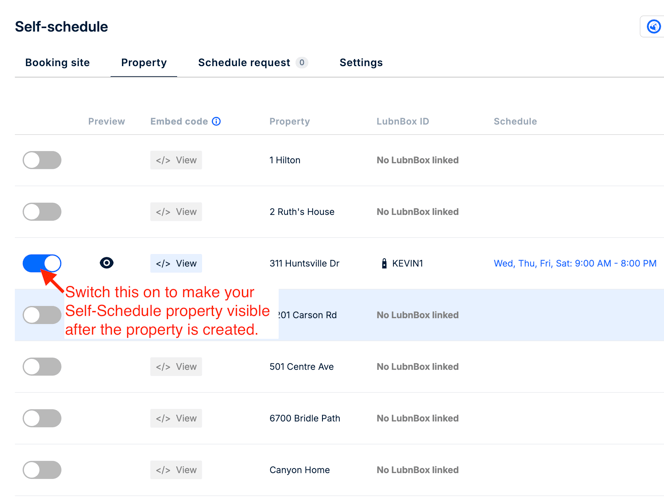
- Property availability.
When you first enable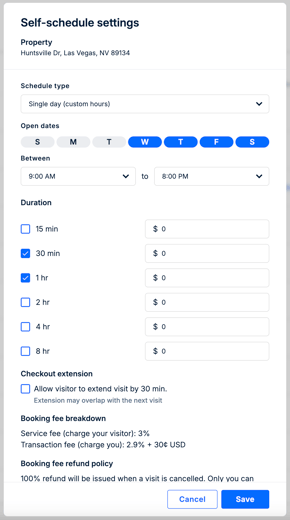
Self-Schedule, you will be prompted to configure the property’s availability. To update these settings later, select the existing values under Schedule or Duration. You can then adjust the availability in the Self-Schedule settings dialog. - Collect fees for property visits. If you lease your property or space for short-term stays, you can require visitors to pay at the time of booking. You may also use this feature for self-guided home tours to enhance security and reduce no-shows.
Enter the applicable fees by duration based on the length of stay. Visitor payments are processed and deposited to your bank account, with all transactions recorded under Ledger > Payout. To accept payments from visitors, please refer to Payout. - Checkout extension. Visitors may occasionally arrive late. You can enable this option to provide visitor additional flexibility; however, be aware that the extended time may overlap with the next scheduled visit.
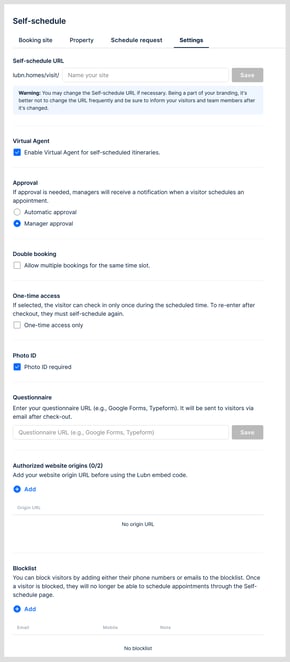
- Virtual Agent. You can enable or disable the Virtual Agent in the itineraries when visitors self-scheduled the visits.
- Auto approval. When visitors book from your Self-Schedule page, you can choose to approve bookings automatically or review each request manually. For manual approvals, go to Self-Schedule > Schedule request to see all pending requests. You can also approve or reject requests directly from the notifications.
- Double booking. You can allow multiple visitor groups to book the property for the same or overlapping time slots. If you enable double booking, be aware that visitors who do not know each other may share the space at the same time. In addition, the first group to arrive will take the key and may not be the last group to leave and lock the door.
- One-time access. When one-time access is enabled, the QR code in the visitor’s itinerary disappears after a successful check-in. The visitor will not be able to access the key again for the remainder of the scheduled time once they have checked out. This feature only works when the lockbox can connect to the mobile network.
- Photo ID. To enhance security, you can require visitors to provide a photo ID during Self-Schedule booking. Visitors will be prompted to upload a government-issued ID, which Lubn’s AI checks only for basic validity and not for background screening. AI-based ID validation may not be 100% accurate. The uploaded ID image is retained in the system for 14 days after the scheduled checkout. If you determine that a scheduled visitor should not access your property, you can revoke the appointment from the Manager App before checkin.
- Questionnaire. You can automatically collect visitor feedback about the property or follow up on applications. Provide a link to your online form or questionnaire, and Lubn will email visitors using the link you specify as soon as they check-out.
- Authorize website origins. If you prefer to use your own property website domain instead of the default Lubn Self-Schedule domain (https://lubn.homes/), you can embed the property scheduling dialog widget into your site. For security, you must register your website origins so the scheduling widget is authorized to run on your pages.
- Blocklist. To protect your properties from unwanted activity, you can add specific email addresses or phone numbers to the blocklist. Blocklisted contacts will be unable to self-schedule visits through your Self-Schedule page.
3. Share it with prospects
Now that your Self-Schedule setup is complete, you can share the booking URL
with prospects via SMS, email, social media, or online chat. You may also generate and print a property booking QR code for use on yard signs. If you manage multiple properties, you will have both a portfolio link and individual booking links for each property.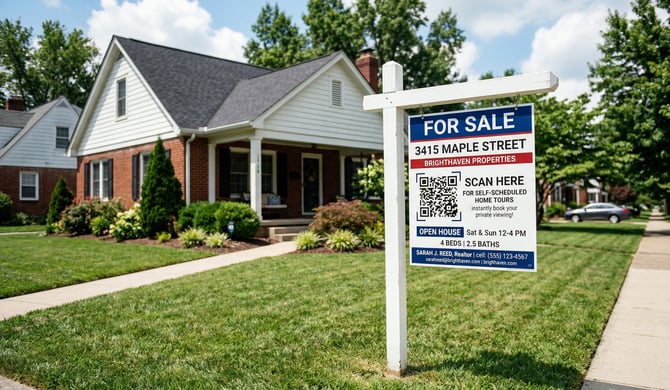
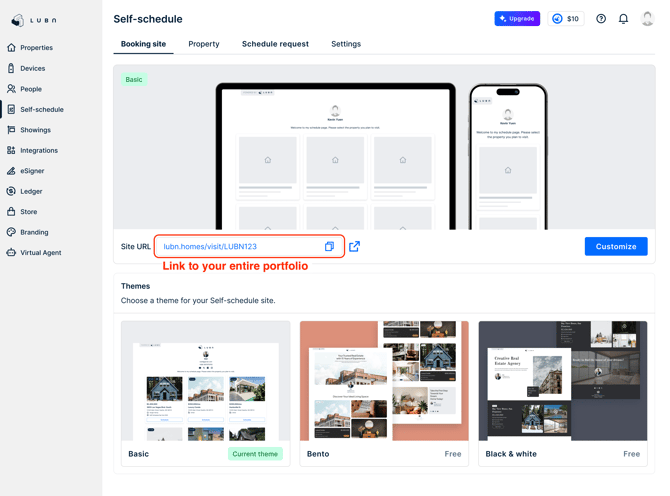
To copy an individual booking link for a property, open your Self-Schedule page and select the desired property. On that property’s page, you can copy the unique booking link for that specific listing.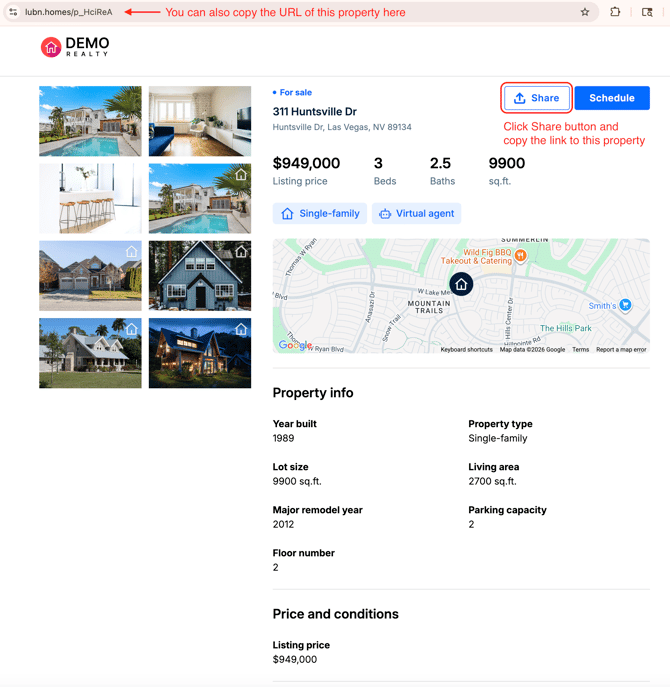
-
For security, visitors cannot use Lubn Self-Schedule to book visits starting at the current time. If you print a Self-Schedule QR code on a yard sign, prospects can scan it and book a future time slot only. This ensures you and your team have an opportunity to review and, if needed, revoke the visit before access is granted.
- For partnered real estate associations, scheduling showings via Lubn Self-Schedule for MLS listings is limited to licensed members. Buyer agents can invite their clients as Guests; clients receive visit itineraries without the access QR code. This ensures only licensed members can retrieve keys from the lockbox, while clients still receive the appointment details and SMS reminders before the appointments.