Here is a breakdown of its core capabilities:
-
24/7 Prospect Engagement: The Virtual Agent lives on your property visit itineraries, answering questions from prospects at any time of day. It uses natural language processing (powered by models like GPT and Gemini) to understand and respond to inquiries about property features, utilities, or lease terms.
- Guided Tours: When a prospect is at the property for a self-guided tour, the Virtual Agent can provide a voice or text-led walkthrough, highlighting specific features as the visitor moves through the space. The Virtual Agent can continue supporting your prospects while they review their itineraries, whether before or after the tour.
- Automated Content Generation: It can take basic property details and automatically craft professional property descriptions for your property booking pages and natural, brand-consistent responses to common prospect questions.
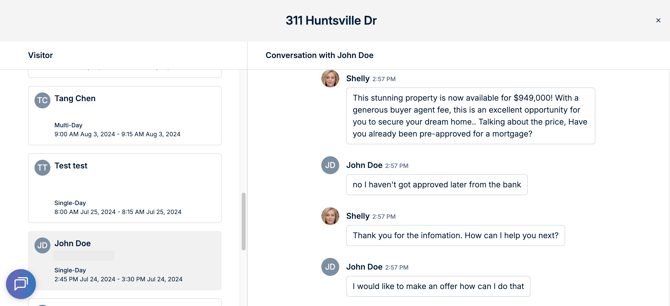
- Lead Qualification & Notifications: The Virtual Agent tracks the conversation and identifies "intent." When a prospect expresses a desire to move forward (e.g., "How do I apply?" or "I love this place"), the system sends an immediate notification to the manager. All conversation transcripts are shared with you so you can pick up exactly where the AI left off.
- "Human-in-Control" Design: Crucially, the Virtual Agent is a support tool, not a replacement for the manager.
- It does not release keys or send access itineraries (only authorized managers can do this).
- It does not act as a licensed broker or handle final transactions.
- All AI-generated text can be reviewed and edited by you at any time.
Set up Virtual Agent
The Virtual Agent is embedded with each property in your Properties list. You can configure it during property creation. For step-by-step guidance, see “How do I add a property?”
Customize Virtual Agent Expression
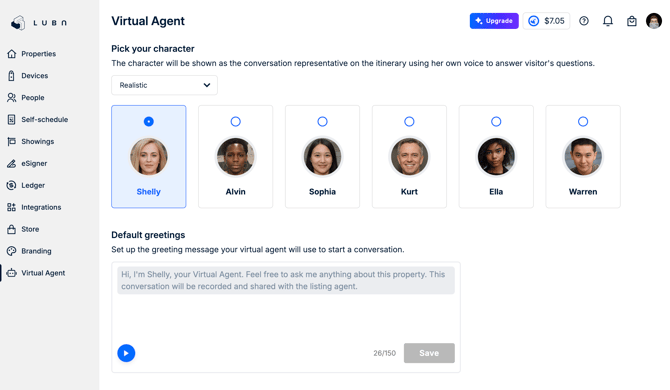
You can customize the appearance and greeting of your Virtual Agent. In the Manager web app, select Virtual Agent from the navigation bar and choose your preferred avatar. This profile image and the Virtual Agent’s voice tone will be what prospects see and hear when they launch it from their itineraries. Hover over the profile image and play the audio preview to test it. Keep the greeting brief so prospects can start asking their questions without delay.
Deploy Virtual Agent
-
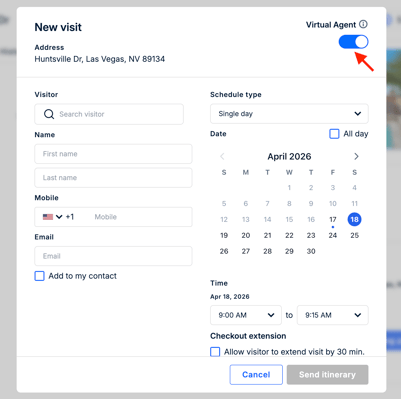
Manually scheduled visits: In the scheduling dialog, toggle on the Virtual Agent. If the switch is unavailable, the Virtual Agent is not yet configured for that property.
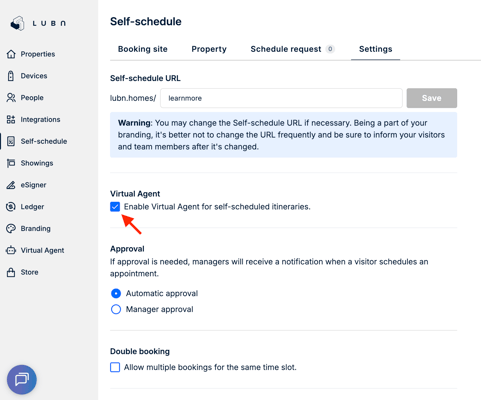
- Self-scheduled visits: To enable the Virtual Agent for self-scheduled visitors, select the Virtual Agent option in the Self-Schedule Settings.
Review the Conversations
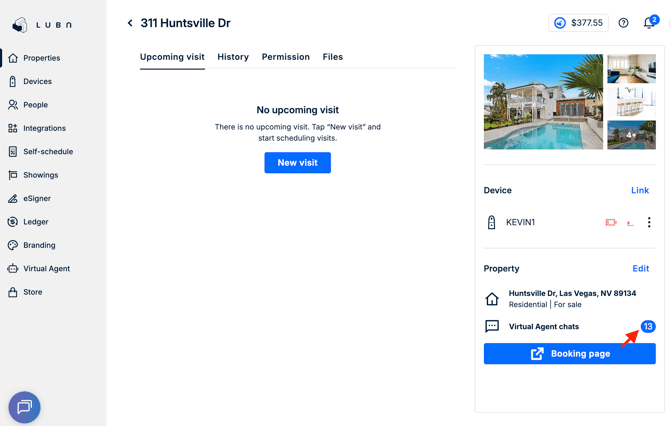
When a prospect engages with the Virtual Agent, Lubn AI immediately captures the conversation and transcribes it for your review. To access these records, open the property and select the Virtual Agent chat to review the dialog.